

How to use HomeAtelie - complete guide
Welcome to HomeAtelie! This is a website about home, renovation and interior design.
Here you can read articles from experienced professionals, ask questions, communicate with
authors and share your experience. In this guide we will tell you everything - step by
step how to use the site.
1. Registration and login
1.1 How to register
Registration on the site is free and takes less than a minute.
1. Click the «Login» button in the upper right corner of the page.
2. On the page that opens, click «Register».
3. Enter your email and create a password.
4. Click «Create account».
5. You will receive an email — open it and click the link to
confirm.
6. Quick registration/login via Google or Facebook
6.1 When registering through these platforms, you will not be asked for a password by default. Then you can continue logging in to the site through the selected service or after logging into your user account in Security, click Password Recovery. Enter your email and click Send Link. Then go to your email and click the link in the letter to set a password.
After this you become a full member of the community.
1.2 How to login to the site
If you are already registered:
1. Click «Login» in the upper right corner.
2. Enter your email and password.
3. Click «Login».
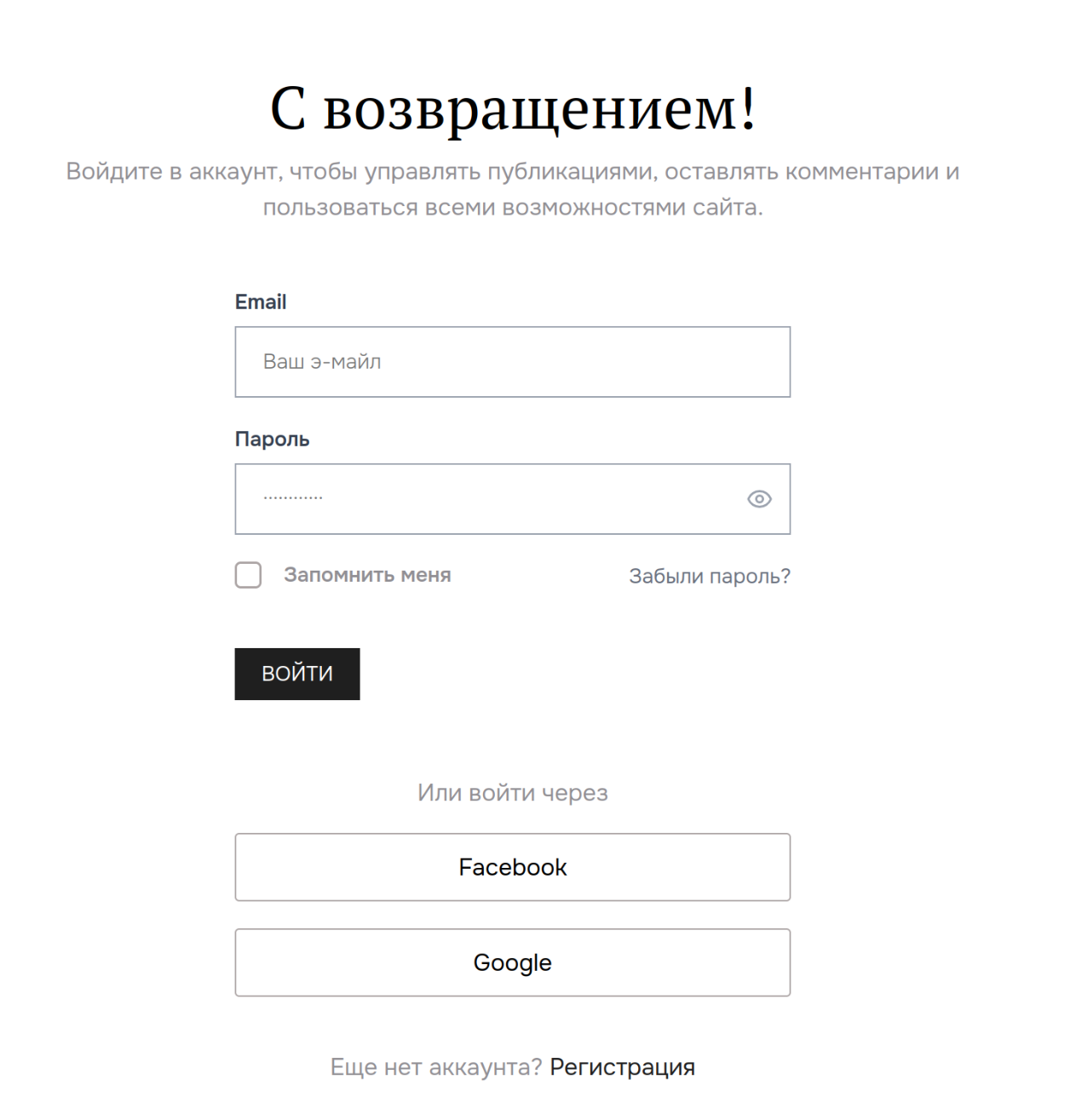
1.3 Forgot your password?
On the login page, click «Forgot password?», enter your email — we will send
you a link to create a new password.
2. Personal Account
Your personal account is your personal section on the site. Here you can set up
your profile, view your publications and manage your account.
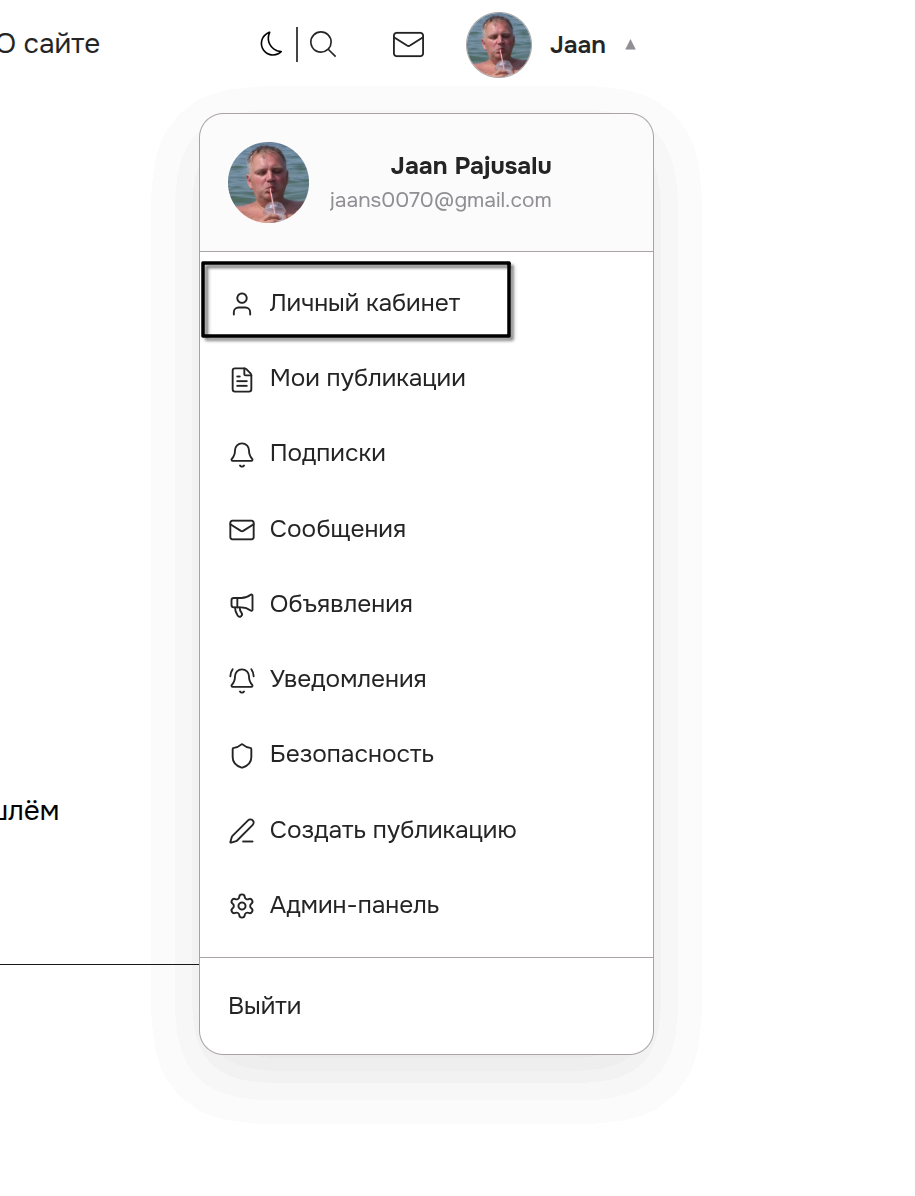
To access your personal account, click on your name or avatar in the upper
right corner and select «Personal Account».
2.1 Profile
In the «Profile» section you can:
Upload an avatar photo
Enter your name
Write a short description about yourself
Add links to your social networks (Instagram, Facebook, Pinterest, X)
A completed profile builds more trust with other participants — don't
skip this step.
2.2 Security
In the «Security» section you can change your account password.
2.3 Notifications
All notifications are displayed here — for example, when someone replies to your
comment or question.
3. Reading articles
3.1 How to find interesting articles
The homepage displays fresh publications from site authors. You
can:
Scroll through articles on the homepage
Go to the «Articles» section in the menu
Select the category you need in the menu — for example, «Renovation», «Design»,
«Construction»
Use the search — click the magnifying glass icon at the top of the
page
3.2 How to read an article
Simply click on the title or cover — the full text of the publication will open.
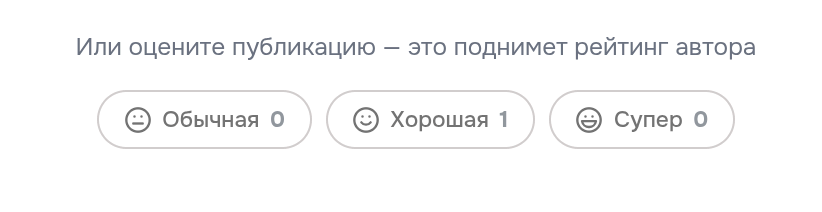
3.3 Rate an article
If you liked the article or found it useful — leave a rating. Under the article
there are buttons «Helpful» and «Not really». This helps authors understand what
interests readers.
4. Comments
4.1 How to leave a comment
There is a comments section under each article. To write a comment:
1. Scroll down to the «Comments» section.
2. Click on the «Write a comment» field.
3. Enter your text.
4. Click «Send».
You need to be registered to leave comments.4.2 Reply to someone else's comment
Under each comment there is a «Reply» button — click it to write a
reply to that person. The reply will appear under their comment and they will receive
a notification.
5. Subscriptions to authors
5.1 Why subscribe
If you liked an author and want to read their new publications —
subscribe. Then each time they publish something new, you will see it
in your subscriptions feed.
5.2 How to subscribe
1. Open the author's page — click on their name or photo in the article.
2. On the author's page click the «Subscribe» button.
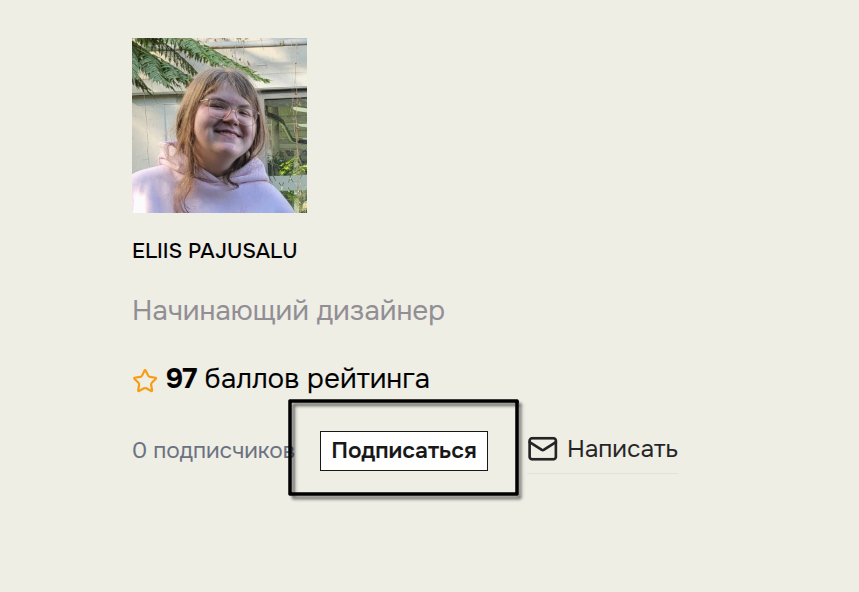
The button will change to «Unsubscribe» — this means your subscription is confirmed.
3. Or at the end of each publication there is an author card with a subscribe button as well

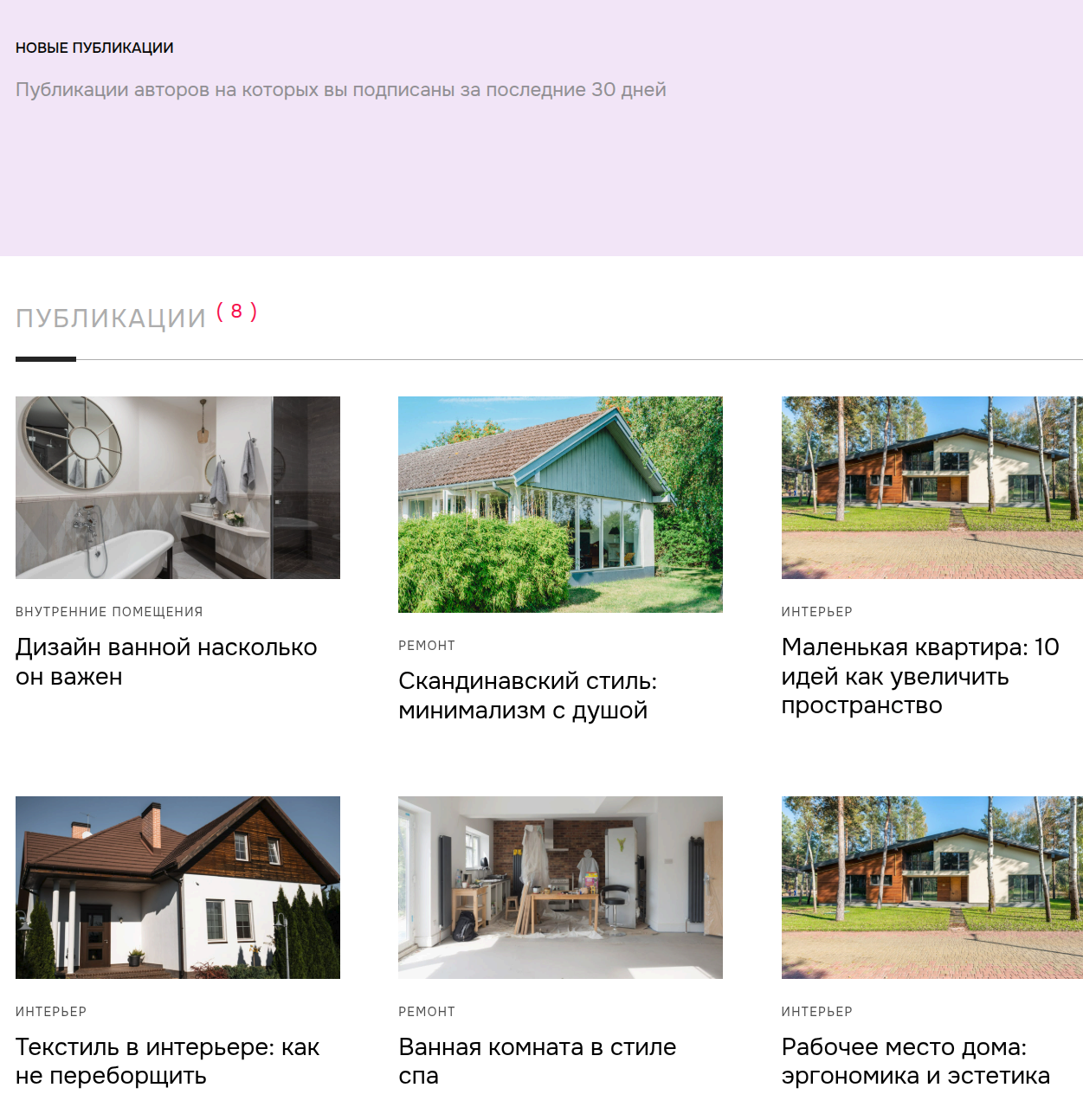
5.3 Subscriptions feed
To see new publications from authors you are subscribed to:
1. Click on your name in the upper right corner.
2. Select «Subscriptions».
3. All publications from your subscriptions over the last 30 days will be shown
6. Questions and Answers
The «Questions» section is a place where you can ask anything about renovation and
design. Experienced professionals and site authors answer participants' questions.
6.1 How to ask a question
1. Go to the «Questions» section through the menu.
2. Click the «Ask a question» button.
3. Write the question title — short and to the point.
4. In the field below you can describe the situation in more detail.
5. Click «Publish».
6.2 How to answer a question
1. Open any question.
2. Scroll down to the «Write an answer» field.
3. Enter your answer and click «Send».
For helpful answers you get rating points — the more points, the higher
your status on the site.
6.3 Rate an answer
If someone's answer was helpful — click «Helpful» under it. The answer author
will receive rating points.
7. Private Messages
On HomeAtelie you can send private messages to other participants — for example,
ask a question directly to an author.
7.1 How to write a message to an author
1. Open the author's page (click on their name in the article).
2. Click the «Message» button next to the subscribe button.
3. A chat window will open — write your message and click the send button or
Ctrl+Enter.
7.2 Incoming messages
To check incoming messages:
1. Click the envelope icon in the upper right corner.
2. Or select «Messages» from your profile menu.
If you have unread messages — a red circle with a number will appear on the envelope icon.
7.3 How to conduct a conversation
In the dialog window:
Write your message in the field at the bottom
Send by clicking the button or Ctrl+Enter
New messages appear automatically — no need to refresh the
page
8. Announcements
The «Announcements» section contains important messages from the site administration for all
participants. When a new announcement appears — you will see a notification in
your profile menu.
To open announcements, select «Announcements» in your profile menu.
9. Search
To find the article or topic you need:
1. Click the magnifying glass icon at the top of the page.
2. Enter a keyword — for example, «tile laying» or «wall painting».
3. Press Enter or click the search button.
10. Dark theme
If you prefer to read on a dark background — switch the site to dark
mode. To do this, click the moon/sun icon at the top of the page.
11. How to publish articles
11.1 Create a new publication
1. In your profile menu click «Create publication».
2. Enter the publication title.
3. Upload a cover for your publication
4. Select from the list who is the author of the cover. If you took the photo yourself, select Created by author. If you took the photo from stock, indicate where you got it from. ATTENTION!!! not all photos, even taken from free stock sites, are allowed to be used on other resources. So before using them, check if you are allowed to use these photos. Upload a quality and horizontal cover photo in 16:9 ratio — this is the face of your publication.
5. Select the category for your publication. If you select Renovation or Construction as the category, you will be offered to choose countries for whom your publication is recommended. You can skip this and not select countries, then all countries will be selected by default.
6. Enter tags for your publication. These are two or three tags that characterize your publication. Start typing and the system will automatically suggest options. Or enter your own. Maximum 5 tags.
Editor toolbar.

At the top are buttons for editing your publication. I'll list from left to right what they do.
Makes selected text bold
Makes selected text italic
Adds underline to selected text
Strikes through selected text
Makes selected text a level 2 heading
Makes selected text a level 3 heading
Inserts a simple list
Inserts a numbered list
Makes selected text a quote
Aligns selected text to the left
Aligns selected text to center
Aligns selected text to the right
Insert link
Insert images into publication. Prefer horizontal images.
Undo button
Redo button
Insert video from YouTube - copy the video link in YouTube that you want to insert in your publication
Button to upload your own video
Insert horizontal line
Button for automatic correction of spelling errors in the text
Button for text editing by neural network
Write your publication. During writing, autosave mode is enabled, which means your text is saved as a copy in your browser every 30 seconds. If something goes wrong and you return to writing later, you will be offered to restore your publication. After writing, you can either click the Send for Moderation button, then the publication will go to the admin for review, or click Save Draft, then the publication will have draft status. All your drafts can be viewed in your user account.
Approved publications are immediately placed on the site's homepage and you receive rating points.
11.2 Edit a publication
In the «My Publications» section click on any of your articles, then click
the «Edit» button. After making changes click «Save».
11.3 Author rating
Your author page displays rating points — they accumulate
when other participants rate your articles and question answers as helpful.
The higher your rating, the more trust in you as an expert.
12. Frequently Asked Questions
Is the site free?
Yes, completely free for all participants.
Can I delete my account?
Yes — contact us through «Contact» in the site footer.
What should I do if I see an offensive comment?
Under each comment there is a report button — use it.
The administration will review your request.
If you have any remaining questions — ask them in the «Questions» section or contact us
directly through «Contact» in the site footer. We are happy to help!
Rating System
Rating reflects the activity and contribution of a participant to the community. Points are awarded automatically for helpful actions on the site.
| Action | Points | Conditions |
|---|---|---|
| Registration on the site | +5 | Once |
| Article published | +5 | For each published article |
| Article rating «Normal» | +1 | To article author for each rating |
| Article rating «Good» | +3 | To article author for each rating |
| Article rating «Awesome» | +5 | To article author for each rating |
| Question asked | +1 | For each published question |
| Answer to question | +2 | For each answer |
| Answer accepted as solution | +10 | Total (incl. +2 for answer) |
| Comment approved | +1 | Maximum 5 points per day |
| New subscriber | +2 | When someone subscribes to you |